Testing Aria for the first time
Right after you install Aria — before Sunday, before a real microphone, before anyone else is in the room — try these five small things. Nothing here can go wrong: there is no live audience, and nothing you do on this page reaches a real screen unless you plug a second one in yourself. About five minutes.
- Aria installed and signed in.
- That is genuinely all. Your laptop’s own built-in microphone is fine. You do not need a projector, a church computer, or anyone else there.
1. Check Aria is awake
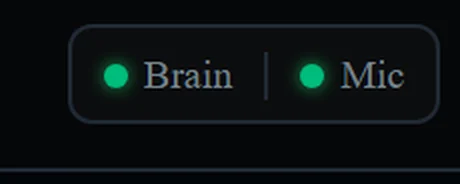
Look at the top row of the console for two small dots, just before the search box.
2. Say something to it
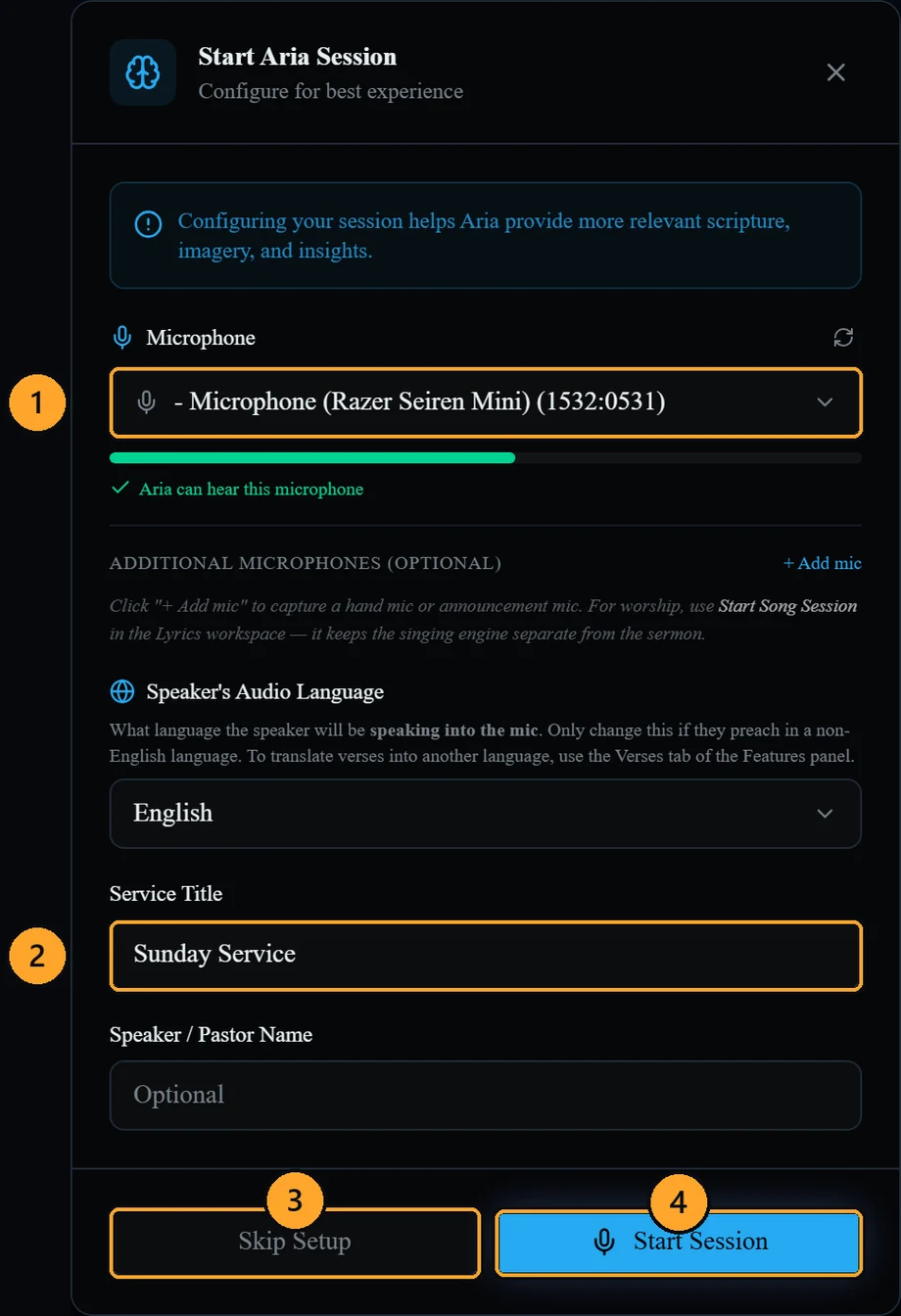
Press Start Session, then Skip Setup — Aria will pick whatever microphone is already plugged in, which on a laptop is the built-in one, and that is exactly what you want for this test.
Now say, out loud, any of these — they all mean the same thing, however you phrase it:
- “Genesis 1:1.”
- “Genesis 1 verse 1.”
- “Genesis chapter 1, verse 1.”
Within a few seconds the verse should appear in the preview. That is the whole engine that everything else in Aria is built on — if a verse shows up when you say it, Aria works.
Check the two dots from step 1 are still green, then try again a little louder and slower. Still nothing: Scripture on the screen explains exactly what Aria listens for, and When something goes wrong has the longer list.
Now look behind the verse, not just at it. Aria puts a picture there that matches what the verse is actually about — not a random background, the actual subject of what you just said. That’s worth noticing now, before Sunday, because it’s easy to miss in the moment once a real service is running. Artwork and images covers how that picture gets chosen.
Now try moving around without saying a new reference each time:
- “Next verse.” — moves forward one.
- “Go back.” — moves back one.
- “Verse 2.” — jumps to that verse in the same chapter.
None of this needs to sound robotic. Ordinary sentences work too — try saying “Let’s go back to verse 5.” out loud, exactly like that. Aria listens for the meaning, not a fixed script.
Now try one without a reference at all. Say “in the beginning God created the heavens and the earth” — nothing else, no book or chapter. Aria recognises the passage from its own words. Because this is a judgement call rather than a certainty, it does not go straight to the screen: it waits in an approval queue. Press the tick to send it up, the cross to drop it. That is Aria being careful on purpose, not slow.
3. Bring in a song
Open Songs in the library and add one — paste in the words of any song you know, or import one you already have. Watch it turn into a set of slides on its own. Songs and worship covers both ways to bring a song in, and what to do with it once it’s there.
4. Try the “oh no” buttons
With anything at all showing in the preview, try these, in any order:
- Press Black. The screen empties. Press it again to bring the picture back.
- Press Freeze. Nothing changes until you press it again.
- Press Dismiss. Whatever Aria put up comes back off.
Get comfortable pressing all three now, while nobody is watching a real screen. Sunday is a much better time to already know what they do than to find out.
5. End the session
Press End Session. You’re done testing.
A cheat sheet of things to say
Any of these are safe to try, any time you have Aria listening:
- “Genesis 1:1”, “Genesis 1 verse 1”, or “Genesis chapter 1, verse 1” — all the same thing
- “Next verse” / “Go back” / “Verse 2”
- “Let’s go back to verse 5” — ordinary sentences work, not just commands
- Any verse reference from the week’s sermon
- The title of a worship song, once Planning Center or SongSelect is connected
This is just a taste. For every phrase Aria actually recognizes — every way to say a reference, and every way to move around once one is on screen — see Scripture on the screen.