When something goes wrong
The checks worth doing first, and how to tell us.
Nothing is appearing on the screen
- Check Black is not on. It blanks every screen and is easy to leave on.
- Check Freeze is not on. Aria carries on working behind a frozen screen, so it looks like nothing is happening.
- Check the screen window is still on the right display and still full screen.
Verses are not appearing when they are spoken
- Check a session is running. Aria only listens between Start Session and End Session.
- Check the Mic indicator at the top of the console is green, and that the chosen microphone is the one the speaker is using.
- Check you are signed in. Listening is the part that needs an account.
- Check the session has not ended on its own after a long silence. Press Start Session again.
The words are behind, or have stopped
Check the connection. Listening is the part of Aria that needs the internet, and it is the first thing to suffer on a weak one. Everything else keeps running; see Working without the internet.
Tell us about it
There is a Report a problem control in the bottom right corner of the console and of the lyrics screen, and a second one in Settings.
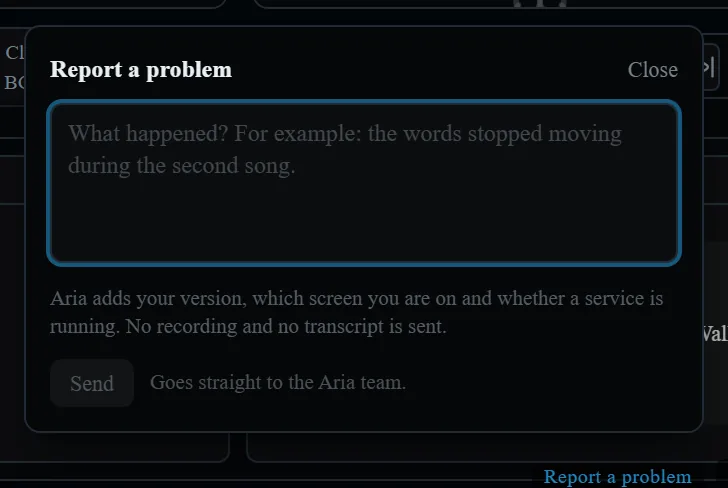
- Press it and write what happened, in your own words.
- Press send.
Aria attaches the version you are running, which screen you were on, and whether a service was live, so nobody has to ask you for any of it. No recording and no transcript is sent.
Sharing your logs
In Settings there is an option to share diagnostics with Aria support. It is off unless you turn it on. It sends what Aria decided during your services, which is how we work out why it got something wrong. Your sermon recording is never sent.