Your first service
What to do in the ten minutes before it starts, and what to press once it does.
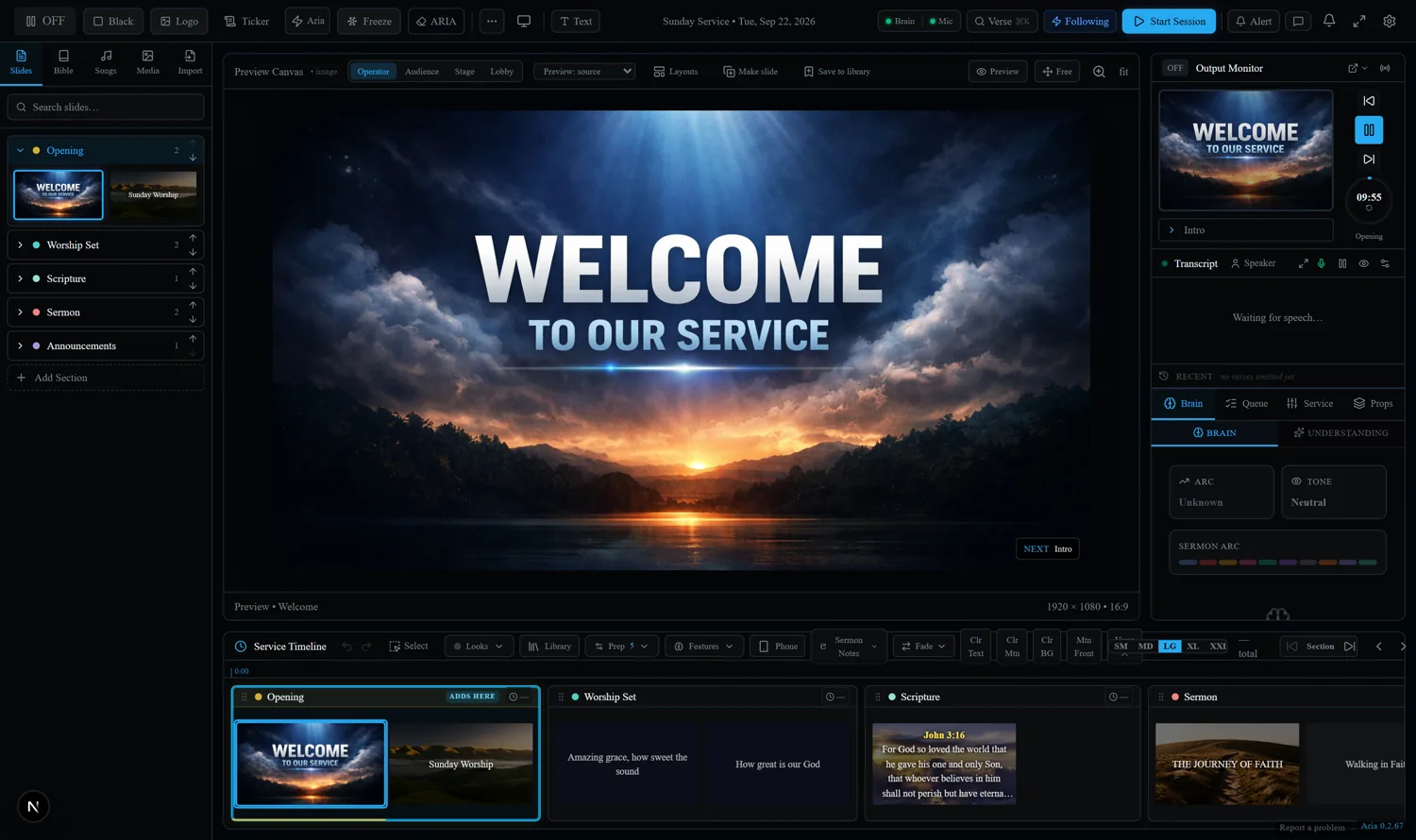
Before the service
- Open Aria and check the two indicators at the top of the console read Brain and Mic in green. They are the service itself and the microphone.
- Put each screen where it belongs. See Screens and outputs.
- Choose the microphone Aria should listen to. It should be the one the speaker uses, not a room mic, which picks up too much of the congregation.
- If you have a service plan, load it. Aria then knows which part of the service you are in and shows what you chose for it.
Starting
Press Start Session. From that moment Aria is listening, and scripture appears on the screen when it is spoken about.
The controls you will actually use

| Control | What it does |
|---|---|
| Black B | Everything the room sees goes black, at once. |
| Freeze | Locks the screen on exactly what is showing. Aria keeps working behind it. |
| Verse Ctrl+K | Type a reference and send it straight to the screen. |
| Clear Aria | Drops back to the slide you had up. |
| Alert | Sends a message to the stage screen. |
Ending
Press End Session. Aria also ends a session on its own after 35 minutes of silence, and after six hours whatever it can hear, so a session left running overnight cannot keep spending. You are warned on screen before either happens, with a button to keep going.
After an automatic end, Start Session simply starts a new one.