Building your service
Put your Sunday together before Sunday: the songs, the verses, the notices, in the order you will actually use them. Aria keeps every week you build, so next week starts from last week instead of from nothing.
Along the bottom of the console is the Service Timeline bar. Press Playlists on it. Everything on this page happens in the Service Library window that opens.

Making one
- Press Playlists.
- Press + New service, top left.
- Type a name — Sunday Morning, Carol Service, whatever you call it — and press Enter.
- Fill the sections in. Each one has a + Add to … line at the bottom of it: add a title slide by typing the words, or a verse by typing the reference, such as John 3:16.
- When the service is ready to be on screen, press Go Live.
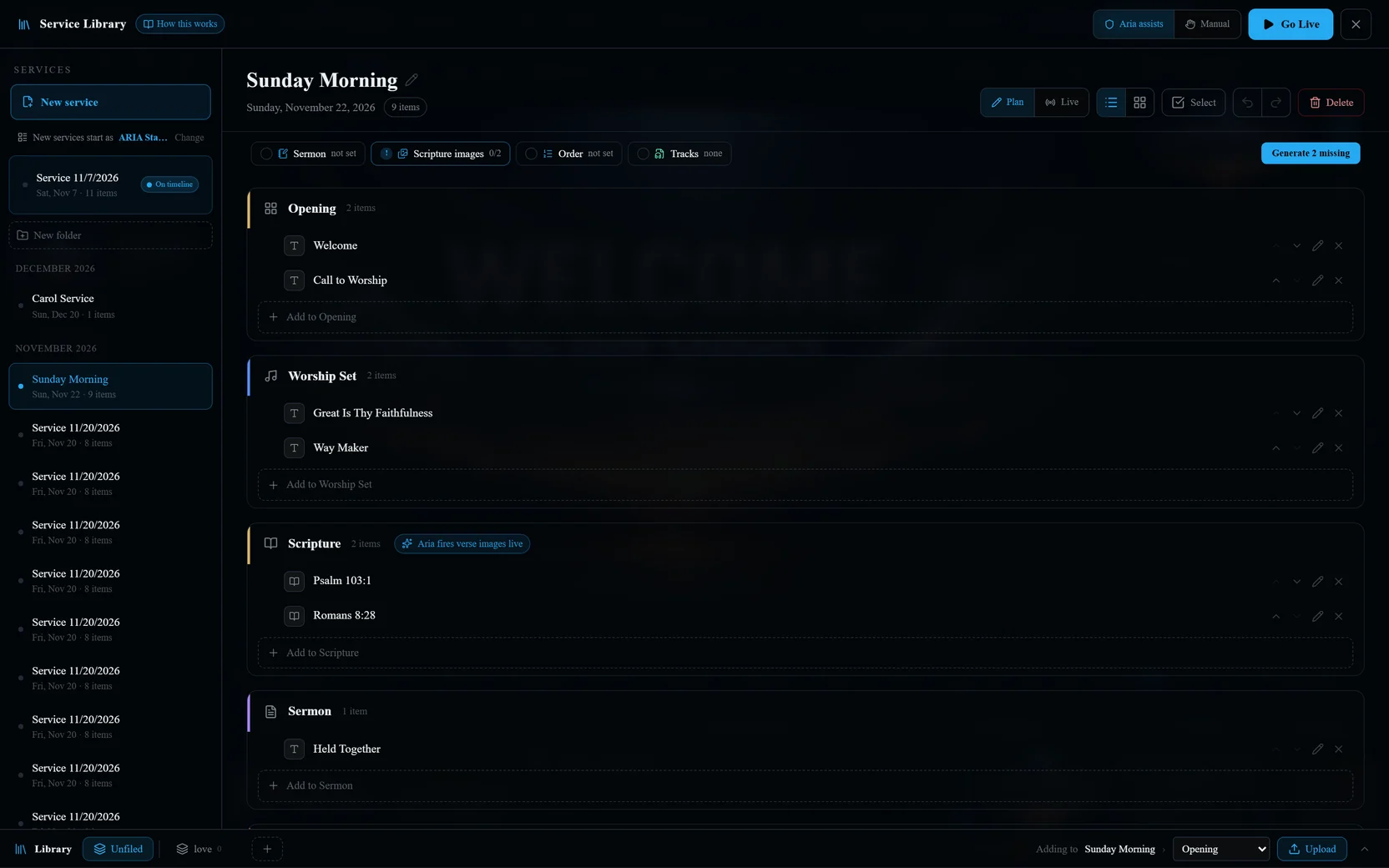
- Your services, newest month first. The one Aria is currently running is marked On timeline.
- The sections of the service you have selected, each holding the slides and verses you put in it.
- Go Live — the step that puts all of it on the screens.
Go Live
This is the one to remember. Building a service changes nothing in the room; a service only reaches the congregation when you press Go Live. It is at the top right of the window.
In one press it:
- loads the whole running order onto the Service Timeline, in order;
- restores the look this service was saved with — fonts, backgrounds, the lot — so a Carol Service can look nothing like a normal Sunday without anybody setting it up again;
- hands Aria the songs you marked for today and the sermon outline you wrote, so it knows what this service is about;
- clears last week’s record of what Aria put on screen, so today’s is today’s.
The console restarts itself as it loads — a second of black, then your service. That is the step working, not a fault.
The service you chose is named on the Service Timeline at the bottom of the console, its slides are sitting in it, and back in the Library that service now carries the On timeline badge.
Go Live loads the service; it does not push a slide out by itself. Click the slide you want and it goes to the screens as usual. If you want Aria putting verses up on its own as the speaker reads, that is the Aria assists / Manual pair at the top right of the Library window — set it before you press Go Live and the choice carries across.
Using the timeline during the service
Two different things share one word, and it is worth separating them once. A service is the running order you build and save — the recipe, kept for next time. The Service Timeline is the strip along the bottom of the console once that service is loaded — today’s meal, on the table. Go Live is what carries one into the other.
During the service the timeline is where you work. Clicking a slide puts it on the screens. That is the whole operation: find it, click it, it is up.
Above the preview are the tabs Operator, Audience, Stage, Lobby. Whichever one you are looking at is the one you are driving.
- On Operator — the normal place to be — a clicked slide goes to every screen at once.
- On Audience, Stage or Lobby, a clicked slide changes only that screen. The others carry on with whatever they were showing.
That is deliberate — it is how you put a note on the stage screen without the congregation seeing it. But if you have clicked a slide and only one screen changed, this is why: go back to Operator and click it again.
Saving what you already built
If you have been dropping slides straight onto the Service Timeline and want to keep that as a service, press Save current timeline at the bottom of the rail and give it a name. Aria saves the look along with it, so the service comes back the way it went out.
The sections a new service starts with
Out of the box a new service has five: Opening, Worship Set, Scripture, Sermon, Announcements. Most churches do not run exactly that, and nobody should be renaming Sermon to The Word every single week.
So set one service up the way your church actually runs — rename sections, add the ones you need, delete the ones you do not — and then:
- Under + New service, press the line that reads New services start as … — it opens the list.
- At the bottom of the list, press the button that offers to save this service’s structure for future services — it names the service you have selected, so check it is the right one.
- Every new service is built that way from then on.
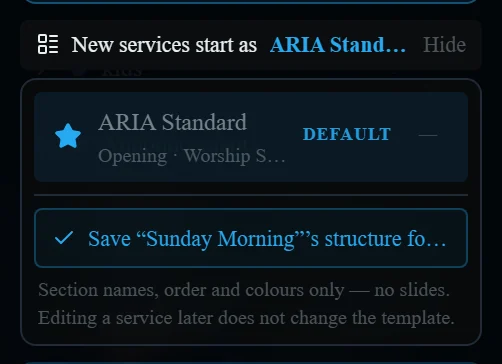
Three things are worth knowing about it, because each one is a reasonable thing to assume and each one is wrong:
- It saves section names, order and colours only — never slides. A welcome slide you use every week belongs in the Library, not in the structure.
- It is a starting point, not a link. Editing a service later never changes the saved structure, and changing the structure never reaches back into services you already built.
- ARIA Standard is always there and cannot be deleted. If you delete the one you had starred, the star goes back to ARIA Standard, so there is always a way back.
Last week is still there
Services are kept on this computer, grouped by month, and they stay until you delete them. Opening last week’s and pressing Go Live again is a legitimate way to run a repeat service. Deleting one asks first.
Keeping it tidy
New folder, in the rail, makes a bin you can drag services into — useful once a year of Sundays has piled up. Folders group the list and nothing more: a service in a folder behaves exactly like one that is not.
While you are building
- Plan and Live, above the sections, decide whether clicking a slide does anything to the screens. Plan is the safe one and the one to build in.
- Select turns on picking several slides at once, to move or delete them together.
- Drag a slide to reorder it, within a section or into another one. The arrows beside each slide do the same thing without a mouse drag.
- Ctrl Z undoes, Ctrl Shift Z redoes.
- The row of chips above the sections — Sermon, Scripture images, Order, Tracks — is this service’s preparation: the sermon outline, pictures generated ahead of time for the verses you listed, the printed order, and backing tracks.